The exam responses report provides information that would be used to analyze candidate response information. It can be used to quickly score an entire administration, evaluate a candidate's exam responses, analyze the performance of candidates within specific topics or subject matters, and describe an item's performance over time.
What filters should I use?
It is important that the exam responses report is constrained appropriately to capture the correct data. Using the correct date range is critical! The Exam Responses report is linked with a candidate's specific attempt and question versioning at the time of submission. This data is used to tabulate their score. Therefore, the date range should be applied to the specific administration or exam window that you are evaluating.
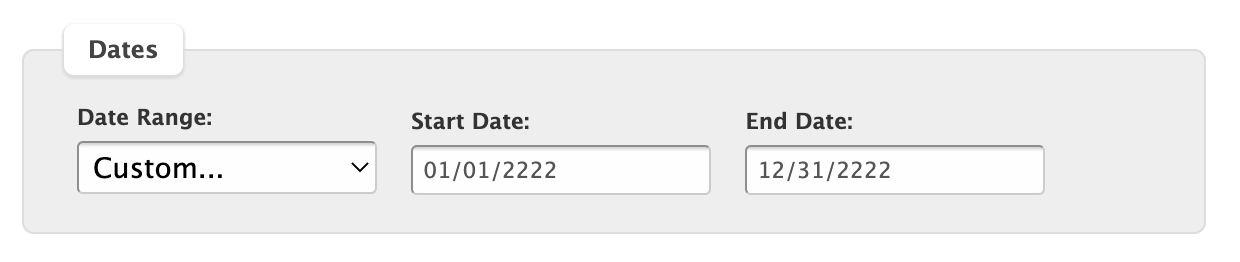
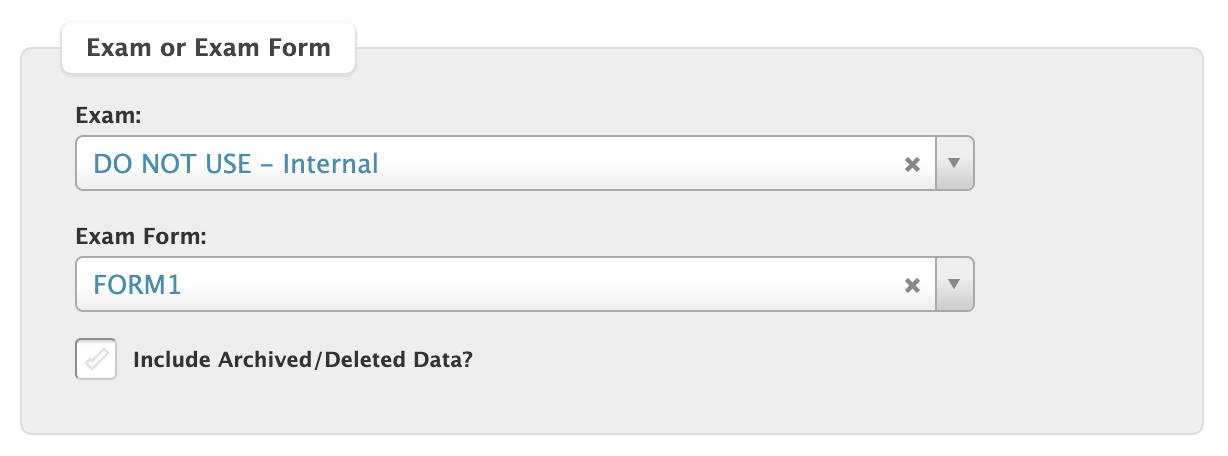
We always recommend filtering by the exam form rather than the exam shell. Since the report displays each item in their respective positions, multiple forms can create a report that is difficult to interpret due to the number of columns.
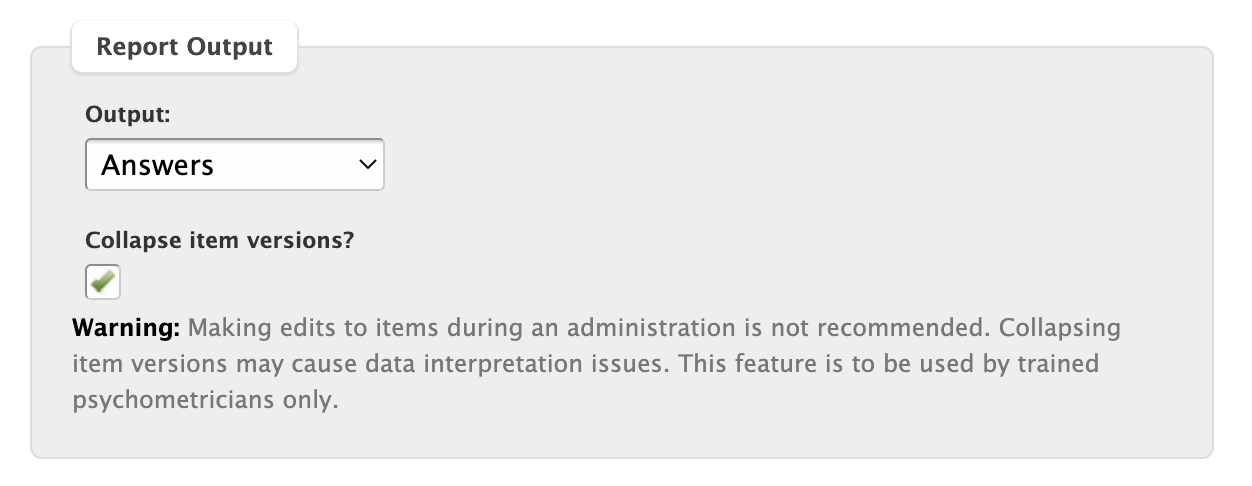
Finally, it is usually recommended to "collapse item versions" when extracting the report. By default, the report will display the most recent 6 versions of a question. This is for psychometric analysis of versioning. If you enable the "Collapse item versions", each item will be aggregated into a single column.
How do I read the Exam Responses Report?
The exam responses report will look like this when it is extracted:
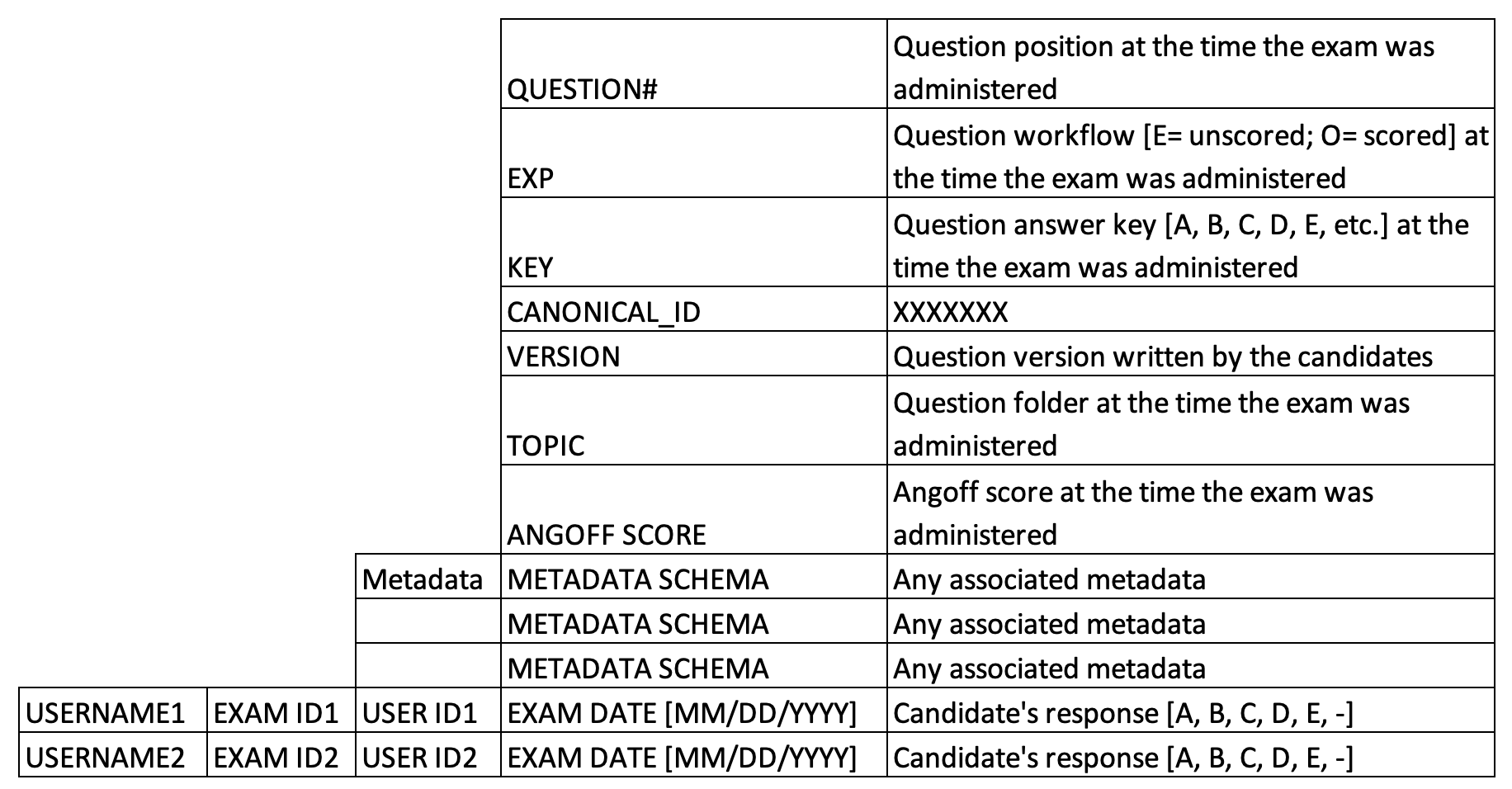
Column D lists all the information that is included for every item. The corresponding item's details are summarized in columns E onwards. By default, the Exam Responses Report will include the following rows at the time the exam was administered to the reported candidates:
- Question #: the question position within the exam is displayed in ascending order, beginning column E and continuing to the right.
- EXP: the question scored or unscored state; E is unscored and O is scored.
- Key: the question answer key, in uppercase alpha characters.
- Canonical ID: the item's unique Meazure identifier.
- Topic: the item bank and/or folder location of the item.
- Angoff Score: the item's Angoff score. This will be blank if the item does not have an Angoff score.
- Metadata: any custom metadata available in the item bank that can be associated with the item will be listed. The cell will be blank if the item does not have the listed custom metadata.