Note that to schedule an exam, an exam must have been granted first. Please review this article for more information: How to issue an exam grant
Scheduling a remote proctored exam
- Navigate to the Users tab.
- Select a user, then select the Granted Exams section of the user profile.
- Click on Book next to the exam title.
- You will be redirected to the New Booking dashboard. Select the Online Proctoring tab.
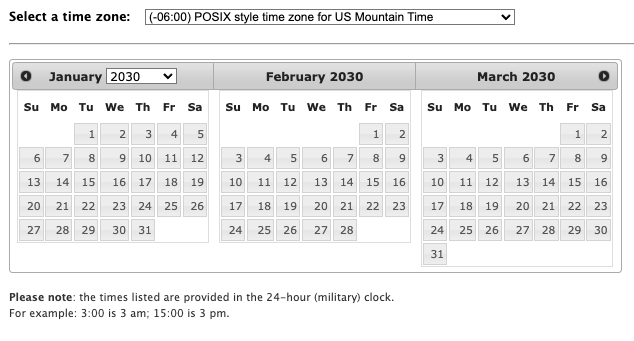
- Choose the candidate’s time zone.
 Tip: Look for the time zones that begin with POSIX to identify the standards.
 - Choose a date and time. Available dates are dark grey.
- Complete the booking by clicking 'Submit Booking'.
- This action will trigger a booking confirmation email to be sent to the user.
Scheduling an in-person proctored exam
- Navigate to the Users tab.
- Select a user, then select the Granted Exams section of the user profile.
- Click on Book next to the exam title.
- You will be redirected to the New Booking dashboard. Select the Location tab.
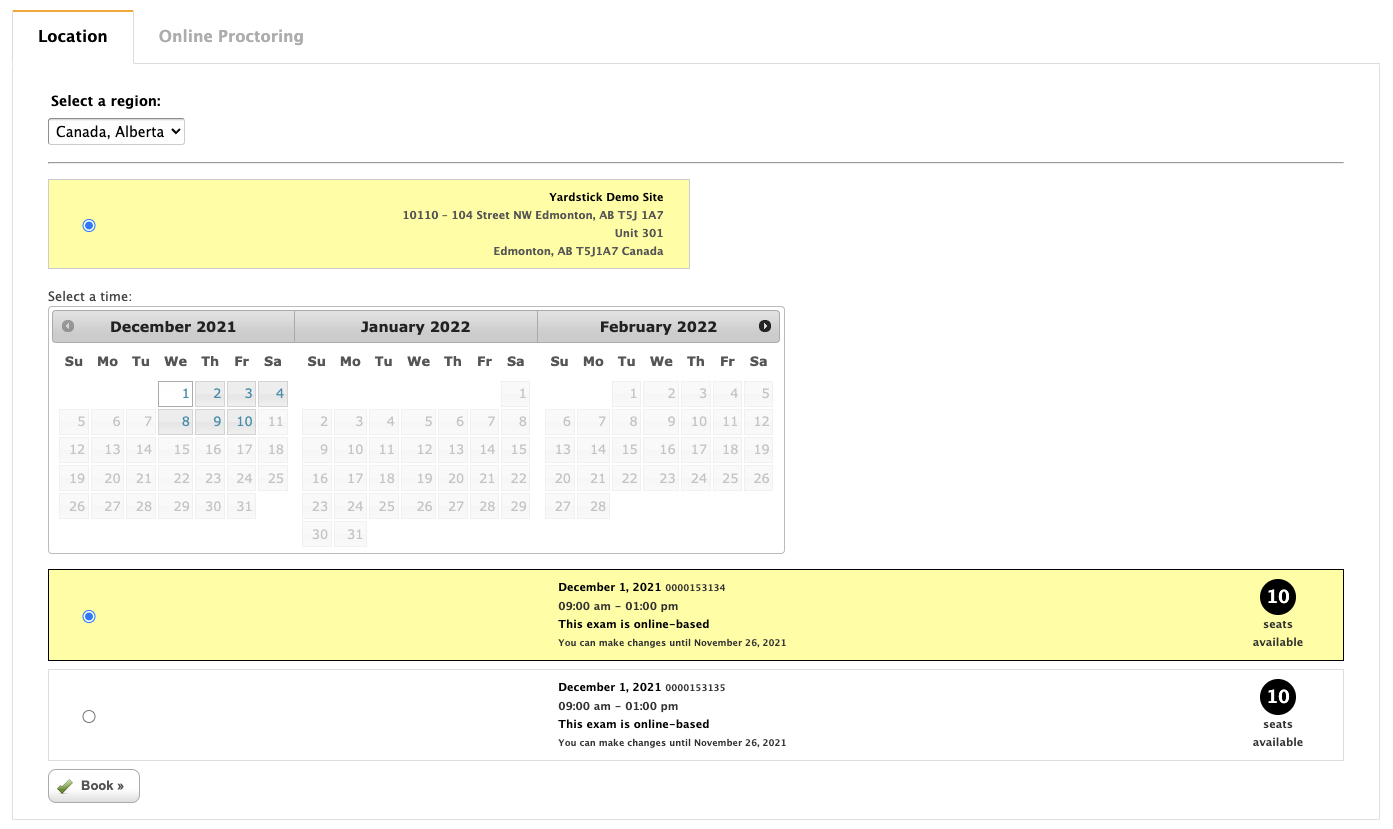
- Choose the region by selecting the country and state/province from the drop-down menu.
- Select a venue within the region to see the available dates and times.
- Choose a date to see the available times and number of seats remaining.
- Available dates are dark grey, and times are local to the venue.
- Complete the booking by clicking 'Book'.
- This action will trigger a booking confirmation email to be sent to the user.