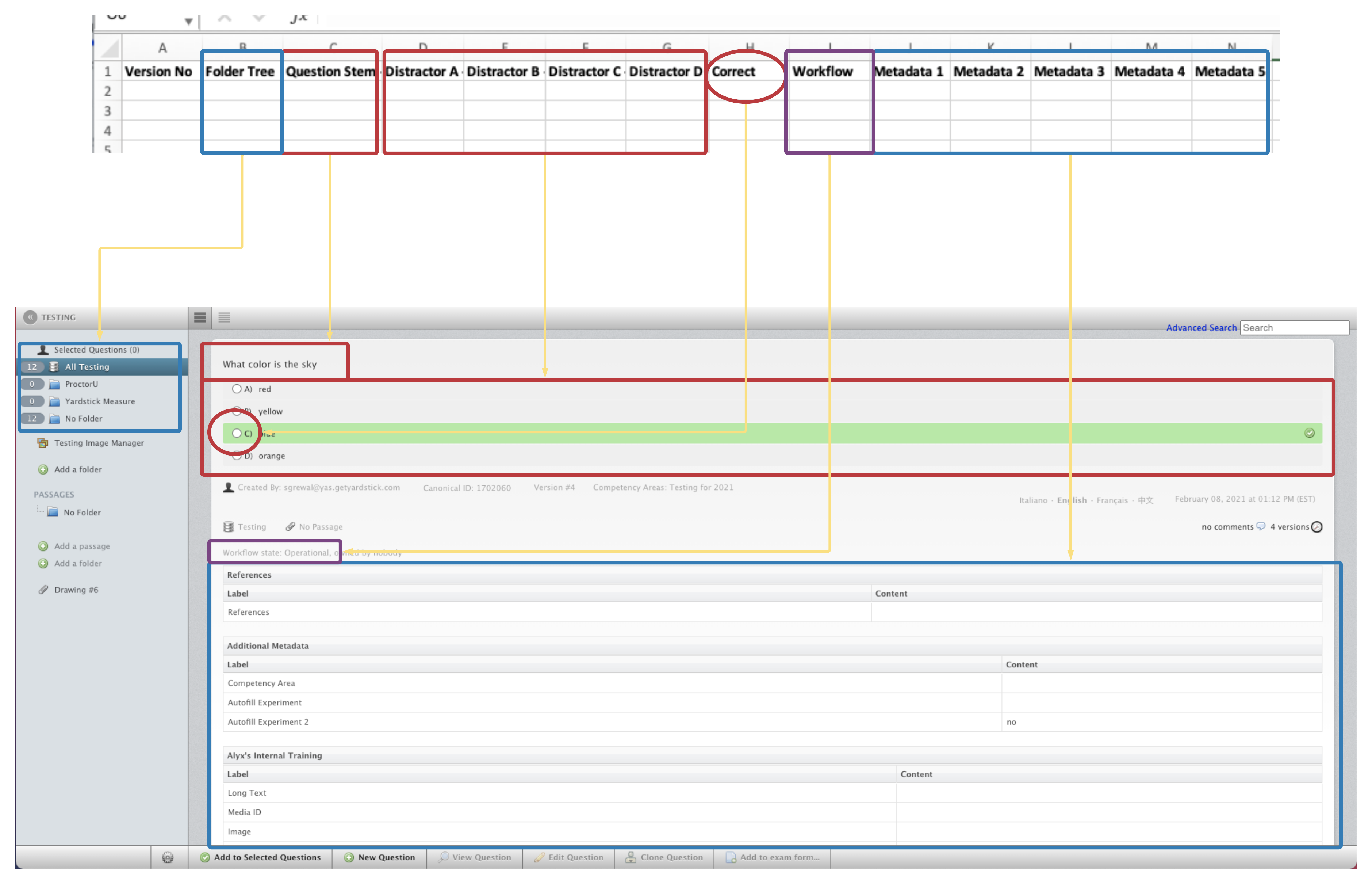
Multiple choice questions can be mass-uploaded from an excel spreadsheet in the Import tab. It is critical that the columns in the file correspond to fields that already exist in Meazure.
- Create an excel file with the information you would like to import. Each question should have its own row.
- Confirm all columns have a properly labelled header. Be sure to also label headers for any columns containing metadata.
- Select all + Copy + ‘Paste as Values’ into a new worksheet.
- Save the spreadsheet as a CSV UTF-8 file.
- Navigate to the Import tab in Meazure and select 'Import Questions'
- Choose and upload the file.
- Assign each header to the correct column type in Meazure.
- Note that the Stem should be the Text column type.
- Click 'Preview' to upload and confirm that all of the data is mapped properly. Review this preview for any visual errors before importing.
- If you need to make any updates to the data, return to the previous page using your browser's back arrow. Note that you will need to re-select your item bank name and Custom Schema selections.
- Click on the Finish Import button. Once the import is complete, you will receive a confirmation email.
The above steps may also be completed for updates to existing questions. The Canonical ID must also be included for updates to existing questions.
Attached to this article is a sample template for you to use.
What columns are required?
- For brand new question imports, you must import at minimum the stem, all distractors in order, and the answer key (letter).
- For updates to existing questions via import, the only columns that are required are the canonical ID and a version number.
Below is a visual reference for how column types map onto an item in Meazure: